
Codeberg Pages
Last updated on 2026-10-19 | Edit this page
Estimated time: 40 minutes
Overview
Questions
- What is Codeberg Pages?
- How can I use Codeberg Pages to collaborate and share my work?
Objectives
- create a
pagesbranch and push a website to it - publish the branch as a website with Codeberg Pages
- with a partner, experiment with collaborating on a Codeberg Pages website
- apply the workflow between local and remote repositories to collaborate on a website
Codeberg Pages
Codeberg
Pages is a service for publishing a website directly from a Git
repository on Codeberg. You put the files of your website (HTML, CSS,
images, …) into a branch called pages, and Codeberg Pages
makes them available at
https://yourname.codeberg.page/repository-name/.
Why Codeberg Pages is awesome!
Codeberg Pages allows you to version control your website. This is useful for a lot of different reasons. It allows you to keep a record of what changes you have made. It allows people to reference your website at a particular point in time and (if you make your source open) to see what it was like at that particular point in time. This is very useful for academic citations. Most people have had the experience of following up a reference to a website and either getting a 404 error or seeing something completely different. Although using versions on your site doesn’t guarantee this won’t happen, it does make it easier to manage old versions of your site.
Codeberg Pages also means that you can collaborate on a website with a lot of people without everyone having to communicate endlessly back and forwards about what changes need to be made, or have been made already. You can create ‘issues’ (things that need discussing or fixing), list things to do in the future, and allow other people visiting your website to quickly suggest, and help implement changes through pull requests.
What about Markdown?
Codeberg Pages publishes your files exactly as they are: it does not
convert Markdown into HTML. An index.md file would be shown
as plain text, so in this episode we write a small HTML page
instead.
If you prefer to write your website in Markdown, you can use a
static site generator (for example Hugo, Jekyll or Quarto) to turn your Markdown files into
HTML, and let a CI service such as Woodpecker CI or Forgejo Actions build
and push the result to the pages branch automatically. This
is exactly how the website of this lesson is made.
Create a pages branch
Up to now, all our commits went into the main branch. A
branch is a separate line of development in the same
repository. Codeberg Pages only looks at a branch named
pages, so let’s create it in our local
hello-world repository:
OUTPUT
Switched to a new branch 'pages'Here, switch tells Git to change the current branch, the
-c tells Git you want to create a new branch, and
pages is what it will be called. The new branch starts with
all the commits that are in main at the moment.
Now create a file called index.html with your text
editor:
and enter a minimal web page, for example:
HTML
<!DOCTYPE html>
<html lang="en">
  <head>
    <meta charset="utf-8">
    <title>Hello, world!</title>
  </head>
  <body>
    <h1>Hello, world!</h1>
    <p>This is my first website on Codeberg Pages.</p>
  </body>
</html>
Save the file, then add and commit it as usual:
Enable Codeberg Pages
Before we push the new branch, we need to tell Codeberg Pages that
our repository has a website. This is done with a webhook:
every time something is pushed to the pages branch,
Codeberg sends a short message to the Pages service, which then
publishes the new version of the site.
- Go to your
hello-worldrepository on Codeberg and click “Settings”. Make sure the repository is public: Codeberg Pages only publishes public repositories. - Click “Webhooks” in the menu on the left side, then “Add webhook” and select “Forgejo”.
- Enter
https://yourname.codeberg.page/hello-world/as the “Target URL”, withyournamereplaced by your Codeberg username. - Enter
pagesin the “Branch filter” field. - Click “Add webhook” at the bottom of the page.
Don’t test the webhook
The webhook page offers a “Test delivery” button. Don’t use it: the
test is expected to fail and does not tell you anything about whether
your site works. Push to the pages branch instead.
Push and view your site
Now push the new branch to Codeberg. As this is the first push of the
pages branch, we use -u again to set its
upstream:
If we now visit
https://some-librarian.codeberg.page/hello-world/ (with
some-librarian replaced by your username), we should see
the web page we just created. Usually it’s available within a few
seconds. If it isn’t, check the webhook in the repository settings:
under “Recent deliveries” you can see whether Codeberg was able to
notify the Pages service.
Challenge: Contributing to a page owned by someone else (slightly easier way)
To practice using Git, Codeberg and HTML we can contribute to a Codeberg Pages site. Pair up in groups of two (or more if needed) and do the exercises below together.
Go to
https://codeberg.org/some-librarian/hello-world, where “some-librarian” is the username of your exercise partner.-
Click on “Fork” in the upper right part of the screen to create a copy of the repository on your account. As you already have your own
hello-worldrepository, you will need to use a different name for it, such ashello-world-1. Once you have a fork of your partner’s repository, you can edit the files in your own fork directly. -
In your fork, use the branch selector above the file list to switch to the
pagesbranch. Click the “index.html” file, then click the edit pencil icon (“Edit file”). Now is a good chance to try some HTML. Add a paragraph (
<p>...</p>), a list (<ul><li>...</li></ul>) or a link (<a href="...">...</a>). The MDN introduction to HTML has many more examples.-
Once you are ready to commit, enter a short commit message, select “Create a new branch for this commit and start a pull request” and press “Propose file change” to avoid committing directly to the
pagesbranch. On the next screen, check that the pull request goes from the new branch in your fork into the
pagesbranch of your partner’s repository (Codeberg may suggestmainas the target, so change it if necessary). Review the changes, add an explanation and click “Create pull request”.Your partner should now see a pull request under the “Pull requests” tab of their repository and can accept the changes there by clicking the “Merge” button. Try this. A moment later, the change will be visible on your partner’s website.
This whole process of making a fork and a pull request might seem a bit cumbersome. Try to think of why it was needed? And why it’s called “pull request”?
We made a fork and a pull request because we did not have permission to edit (or commit) the repository directly. A fork is a copy of the repository that we can edit. By making a pull request we ask the owner of the repository if they would like to accept (pull in) the changes from our fork (our copy) into their version. The owner can then review the changes and choose to accept or reject them.
You can open pull requests on any public repository you find on Codeberg. If you are a group of people who plan to collaborate closely, on the other hand, it’s more practical to grant everyone access to commit directly instead (in the repository settings under “Collaborators”).
Branching and merging
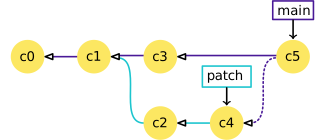
Branches get their name because you can create a new one (say, “patch”) that splits off from an existing one like “main”, allowing different sets of changes to be made in parallel. Later on, Git can take the changes from “patch” and merge (copy) them into the “main” branch. In the last challenge, Codeberg did all this for us in the background.
Optional challenge: Contributing to a page owned by someone else (slightly more complicated way)
Instead of making edits on the Codeberg website you can ‘clone’ the fork to your local machine and work there. There are several reasons why you might want to do this:
- you need to move content from one file to another;
- you need to make changes to several files at once;
- you find it easier to work in your desktop software than in a web form.
Pair up in groups of two (or more if needed) and follow the steps below together. If you have already tackled the previous challenge, you can use the fork you created there and skip to step 3.
Go to
https://codeberg.org/some-librarian/hello-world, where “some-librarian” is the username of your exercise partner.Click on “Fork” in the upper right part of the screen to create a copy of that repository on your account. As you already have your own
hello-worldrepository, you will need to use a different name for it, such ashello-world-1.-
In your own fork, find the clone address above the list of files and copy it. Just like when you connected your local repository to Codeberg, make sure “SSH” is selected, so the link starts with
git@codeberg.org:. -
Go back to your shell terminal window. If you’re in your own Git repository, use the
cdcommand to come out of it:Change the following command to use the link you just copied and run it:
The
clonecommand creates a directory on your computer containing the current state of the repository and its full version history. -
Enter the directory that Git just created and switch to the
pagesbranch: -
Create a new branch to hold the changes you’re about to make:
Open up the
index.htmland start editing it.-
After saving the file, add it, commit it with a short message describing the change:
-
Push your new branch up to your fork on Codeberg:
-
Git will show you a message from Codeberg containing a link for starting a new pull request:
OUTPUT
remote:
remote: Create a new pull request for 'my-patch-1':
remote:   https://codeberg.org/<your_codeberg_username>/hello-world-1/compare/main...my-patch-1
remote:
You can visit that link in your browser, or go to your partner’s repository, open the “Pull requests” tab and click “New pull request”.
Make sure that the pull request goes into the
pagesbranch of your partner’s repository and comes from themy-patch-1branch of your fork. The next screen lets you add a description to explain your changes to the repository owner, and change the title to make it clearer (this is especially useful if you make a single pull request for multiple commits). When you’re ready, click on the “Create pull request” button.Your partner should now see a pull request under the “Pull requests” tab and can accept the changes there by clicking “Merge”. Try this.
Optional challenge: Adding a second page
A website usually consists of more than one page. Try adding another HTML page to your repository. You could do this on the command line or directly on Codeberg. The steps below are for working directly on Codeberg:
-
Make sure you are looking at the
pagesbranch of your repository. To add a new file directly on Codeberg, click “Add file” and then “New file”. Name it
test.html, add some HTML and click “Commit changes”.Try opening
https://some-librarian.codeberg.page/hello-world/test.html(replace “some-librarian” with your username).Link the new page from your
index.htmlwith<a href="test.html">My test page</a>.
- Codeberg Pages publishes the
pagesbranch of a public repository as a website that is version controlled and accessible for collaboration - Codeberg Pages serves files as they are; Markdown needs to be converted to HTML first, for example by a static site generator
- Collaborating on a Codeberg Pages website uses the same Git/Codeberg workflow you learned for collaborating via a Codeberg repository