
All in One View
Content from What is Git/Codeberg?
Last updated on 2026-10-19 | Edit this page
Estimated time: 10 minutes
Overview
Questions
- What is Git?
- What is Codeberg?
Objectives
- recognize why version control is useful
- distinguish between Git and a Git hosting platform like Codeberg
What is Version Control?
Version control is a name used for software which can help you record changes you make to the files in a directory on your computer. Version control software and tools (such as Git and Subversion/SVN) are often associated with software development, and increasingly, they are being used to collaborate in research and academic environments. Version control systems work best with plain text files such as documents or computer code, but modern version control systems can be used to track changes in most types of file.
At its most basic level, version control software helps us register and track sets of changes made to files on our computer. We can then reason about and share those changes with others. As we build up sets of changes over time, we begin to see some benefits.
Benefits of using version control?
- Collaboration - Version control allows us to define formalized ways we can work together and share writing and code. For example merging together sets of changes from different parties enables co-creation of documents and software across distributed teams.
- Versioning - Having a robust and rigorous log of changes to a file, without renaming files (v1, v2, final_copy)
- Rolling Back - Version control allows us to quickly undo a set of changes. This can be useful when new writing or new additions to code introduce problems.
- Understanding - Version control can help you understand how the code or writing came to be, who wrote or contributed particular parts, and who you might ask to help understand it better.
- Backup - While not meant to be a backup solution, using version control systems mean that your code and writing can be stored on multiple other computers.
There are many more reasons to use version control, and we’ll explore some of these in the library context, but first let’s learn a bit about a popular version control tool called Git.
What are Git and Codeberg?
We often hear the terms Git and Codeberg (or GitHub, GitLab, …) used interchangeably but they are different things.
Git is one of the most widely used version control systems in the world. It is a free, open source tool that can be downloaded to your local machine and used for logging all changes made to a group of designated computer files (referred to as a “git repository” or “repo” for short) over time. It can be used to control file versions locally by you alone on your computer, but is perhaps most powerful when employed to coordinate simultaneous work on a group of files shared among distributed groups of people.
Rather than emailing documents with tracked changes and some comments and renaming different versions of files (example.txt, exampleV2.txt, exampleV3.txt) to differentiate them, we can use Git to save (or in Git parlance, “commit”) all that information with the document itself. This makes it easy to get an overview of all changes made to a file over time by looking at a log of all the changes that have been made. And all earlier versions of each file still remain in their original form: they are not overwritten, should we ever wish to “roll back” to them.
Git was originally developed to help software developers work collaboratively on software projects, but it can be and is used for managing revisions to any file type on a computer system, including text documents and spreadsheets. Once installed, interaction with Git is done through the Command Prompt in Windows, or the Terminal on Mac/Linux. Since Word documents contain special formatting, Git unfortunately cannot version control those, nor can it version control PDFs, though both file types can be stored in Git repositories.
How can understanding Git help with work in libraries?
- Enables you to contribute to, collaborate on, and support digital research projects
- Enables you to control changes to your files over time without keeping multiple copies of those files
Codeberg on the other hand is a website for hosting and sharing Git repositories remotely. It offers a web interface for browsing files and their history, and adds features for working together, such as issues, pull requests, wikis and websites. Codeberg is run by Codeberg e.V., a non-profit association based in Berlin, Germany. It is funded by donations, built on the free software Forgejo and dedicated to hosting free and open content: open source software, but also documentation, teaching materials like this lesson, and research projects.
There are many other Git hosting services that offer similar features, such as GitHub, GitLab (often run by universities and research institutions as their own instance) and Bitbucket. Because they all build on Git, almost everything you learn in this lesson applies to them as well: only the buttons in the web interface look a little different.
Why Codeberg?
We use Codeberg in this lesson because it is a non-profit, community-run platform hosted in the EU, it is built entirely on free software, and it does not track its users or use their content for commercial purposes. For research and teaching materials that are meant to be shared openly, this makes it a good fit.
Codeberg is intended for free and open content. Please check the Terms of Use before you use it for your own projects.
How can Codeberg help with work in libraries?
- A place to discover and reuse (“fork”) openly licensed digital projects and open source software
- A new and alternative means for publishing content online. Any Codeberg repository can have its own project website using Codeberg Pages.
Uses in a Library Context
Consider these common library world scenarios:
Scenario 1: Local library looking to start a crowdsourcing project
A local librarian is looking to put thousands of historical photographs of the area online so that the community can help identify the people and places they depict. She combs the web for examples of existing crowdsourcing projects, and even though they all appear unique to each institution, she notices quite a few seem to have almost the exact same functionality and structure. Rather than build a whole new version from scratch herself, she wishes there was a way to just copy the code of an existing one, and modify it to reflect her project. She notices a “Source code” link at the bottom of one of the projects she likes, but clicking on the link just brings her to a confusing directory of files and oddly labeled buttons such as “Fork”.
Git hosting platforms like Codeberg host many open-licensed projects and allow any user to fork any public project. By clicking the “Fork” button, any Codeberg user can almost instantaneously create their own version of an existing project. That “forked” project can be used as the basis for a new project, or can be used to work out new features that can be merged back into the original. (Adapted from: GitHub for Academics )
Scenario 2: Multiple people editing metadata for a collection
A metadata specialist has exported a spreadsheet from a repository for cleaning and editing. She’s working with a group of library workers and students, so they need to make sure edits don’t conflict. They also need to be able to undo any edits and preserve the original metadata. Once edits are complete, the whole group wants to review the changes before re-ingesting the spreadsheet of metadata into the repository.
The team can choose to use Git by itself to track changes and resolve conflicts or they can choose to use Codeberg to host the project so that users can collaborate and review changes on the Web. Git will preserve the original metadata as well as all edits. Codeberg will facilitate discussion about what changes should be made, who should make them, and why.
- Version control helps track changes to files and projects
- Git and Git hosting platforms like Codeberg are not the same
Content from Getting started with Git
Last updated on 2026-10-19 | Edit this page
Estimated time: 25 minutes
Overview
Questions
- What are repositories and how are they created?
- What do
addandcommitmean? - How do I check the status of my repository?
Objectives
- create a Git repository
- track changes to files using the Git repository
- query the current status of the Git repository
Setting up Git
When we use Git on a new computer for the first time, we need to configure a few things. The basic elements of a configuration for Git are:
- your name and email address,
- what your preferred text editor is,
- the name of your default branch (branches are an important component of Git that we will cover later).
To start we will check in on our current Git configuration. Open your shell terminal window and type:
On MacOS, without any configuration your output might look like this:
OUTPUT
credential.helper=osxkeychain
init.defaultbranch=main
If you followed our instructions for installing Git for Windows, your output might look like this:
OUTPUT
diff.astextplain.textconv=astextplain
filter.lfs.clean=git-lfs clean -- %f
filter.lfs.smudge=git-lfs smudge -- %f
filter.lfs.process=git-lfs filter-process
filter.lfs.required=true
http.sslbackend=schannel
core.autocrlf=true
core.fscache=true
core.symlinks=true
core.editor=nano.exe
pull.rebase=false
credential.helper=manager
credential.https://dev.azure.com.usehttppath=true
init.defaultbranch=master
If you are using Linux or WSL 2 on Windows, you might not see any output at all.
If you have different output, then you may have your Git configured already. If you have not configured Git, we will do that together now. First, we will tell Git our user name and email.
Please note: Use the same email address in your Git configuration in
the shell as you entered into Codeberg when you created your Codeberg
account. Later in the lesson we will be using Codeberg, and it uses the
email address to link your commits to your account. Keep in mind that
the email address in your commits will be publicly visible once you
share them. If you are concerned about privacy, you can use the private
noreply address that Codeberg shows in your account
settings under “Account” instead.
Type these two commands into your shell, replacing
Your Name and the email address with your own:
BASH
$ git config --global user.name "Your Name"
$ git config --global user.email "yourname@domain.name"
If you enter the commands correctly, the shell will merely return a command prompt and no messages. To check your work, ask Git what your configuration is using the same command as above:
OUTPUT
user.name=Your Name
user.email=yourname@domain.name
Let’s also set our default text editor. A text editor is necessary with some of your Git work, and the default from Git is Vim, which is a text editor that is hard to learn at first. Therefore, we recommend setting a simpler text editor in your Git configuration for this lesson.
Text editors
There are a lot of text editors to choose from, and a lot of people are enthusiastic about their preferences.
Nano is a good choice because it works on Mac, Windows, and Linux; it runs directly in your shell; and has on-screen reminders of how to use it. If you followed our instructions for installing Git for Windows, it should already be your default editor.
Vi and Vim also run directly in the shell and have many powerful features, but are less beginner-friendly.
If you will be using Git or the Shell with a group of people for a project or for work, asking for recommendations or preferences can help you pick an editor to get started with. If you already have your favorite, then you can set it as your default editor with Git.
Any text editor can be made default by adding the correct file path
and command line options (see the Git
documentation). However, the simplest core.editor value
is "nano -w", which will run the Nano text editor directly
in your shell. To select it, type the following into your shell:
Lastly, we need to make sure the name of our default branch is set to
main, as that is what Codeberg and most other Git hosting
platforms use. To do this, type the following into your shell:
You may already have seen a setting for
init.defaultbranch when you looked at your configuration
earlier, overriding Git’s internal default. If your system configuration
sets the default branch to main, you don’t necessarily have
to set it again yourself, but doing so protects you from any
system-level changes.
Creating a repository
A Git repository is a data structure used to track
changes to a set of project files over time. Repositories are stored
within the same directory as these project files, in a hidden directory
called .git. We can create a new git repository either by
using Codeberg’s web
interface, or via the command line. Let’s use the command line to
create a git repository for the experiments that we’re going to do
today.
First, we will create a new directory for our project and enter that directory. We will explain commands as we go along.
Using Git
One of the main barriers to getting started with Git is understanding the terminology necessary to executing commands. Although some of the language used in Git aligns with common-use words in English, other terms are not so clear. The best way to learn Git terminology - which consists of a number of verbs such as add, commit and push (preceded by the word ‘git’) - is to use it, which is what we will be doing during this lesson. We will explain these commands as we proceed from setting up a new version-controlled project to publishing our own website.
On a command line interface, Git commands are written as
git verb options, where verb is what we
actually want to do and options is additional optional
information which may be needed for the verb. So let’s get
started with our setup.
We will now create an empty git repository to track changes to our project. To do this we will use the git init command, which is short for initialise.
OUTPUT
Initialized empty Git repository in <your file path>/hello-world/.git/The hello-world directory is now a git repository.
If we run the ls command now (ls lists the
content of the hello-world directory), the repository might
seem empty; however, adding the -a flag for all files via
ls -a will show all hidden files, which in this case
includes the new hidden directory .git. Flags can be
thought of as command line options that can be added to shell
commands.
Note that whenever we use git via the command line, we need to
preface each command (or verb) with git, so that the
computer knows we are trying to get git to do something, rather than
some other program.
Displaying the current project’s status
We can run the git status command to display the current
state of a project. Let’s do that now.
OUTPUT
On branch main
No commits yet
nothing to commit (create/copy files and use "git add" to track)
The output tells us that we are on the main branch and that we have nothing to commit (no unsaved changes).
Branches and commits
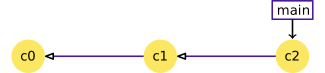
Commits in Git are like snapshots of our project. They are ordered into sequences, or “branches”, with each commit pointing back to the one before it in the branch. Git keeps track of the last commit in each branch with a special label; in this lesson we mostly use one branch with the label “main”.
Two steps: Adding and committing
We will now create and save our first project file. This is a two-step process. First, we add any files for which we want to save the changes to a staging area, then we commit those changes to the repository. This two-stage process gives us fine-grained control over what should and should not be included in a particular commit.
Let’s create a new file using the touch command, which
is a quick way to create an empty file.
The .md extension above signifies that we have chosen to
use the Markdown format, a lightweight markup language with plain text
formatting syntax. We will explore Markdown a bit later.
Let’s check the status of our project again.
OUTPUT
On branch main
No commits yet
Untracked files:
  (use "git add <file>..." to include in what will be committed)

    index.md

nothing added to commit but untracked files present (use "git add" to track)
This status is telling us that git has noticed a new file in our
directory that we are not yet tracking. With colourised output, the
filename will appear in red. To change this, and to tell Git we want to
track any changes we make to index.md, we use git add.
This adds our Markdown file to the staging area (the
area where git checks for file changes). To confirm this we want to use
git status again.
OUTPUT
On branch main

No commits yet

Changes to be committed:
  (use "git rm --cached <file>..." to unstage)

    new file:   index.md
If we are using colourised output, we will see that the filename has changed colour (from red to green). Git also tells us that there is a new file to be committed but, before we do that, let’s add some text to the file.
We will open the file index.md with a text editor. If
you set Nano as your core.editor value, this would be a
good time to try it out:
If you don’t want to try Nano, use whatever text editor you feel comfortable with (e.g. Notepad on Windows or TextEdit on macOS) to open the file.
When you have the file open, enter # Hello, world!. The
hash character is one way of writing a header with Markdown. Then save
the file and close the text editor.
When showing how to edit index.md for the first time,
Nano is the most convenient editor to use – you don’t have to leave the
shell and it should work for everyone – but few learners will be fully
confident with it. Take them step-by-step through one of the two ways of
saving and closing the file:
- Ctrl + X to close the file; Y to save the file; Enter to keep the same filename.
- Ctrl + O to save the file; Enter to keep the same filename; Ctrl + X to close the file.
You could also keep a file manager window open (e.g. File Explorer, Finder, Files/Nautilus, Dolphin) to demonstrate locating the file and opening it in a suitable GUI text editor. Look out for learners who need help with this.
Now, let’s check if Git has spotted the changes:
OUTPUT
On branch main

No commits yet

Changes to be committed:
  (use "git rm --cached <file>..." to unstage)

	new file:   index.md

Changes not staged for commit:
  (use "git add <file>..." to update what will be committed)
  (use "git checkout -- <file>..." to discard changes in working directory)

	modified:   index.md
This lets us know that git has indeed spotted the changes to our file, but that it hasn’t yet staged them, so let’s add the new version of the file to the staging area.
Now we are ready to commit our first changes. Commit is similar to ‘saving’ a file to Git. However, compared to saving, a commit provides a lot more information about the changes we have made, and this information will remain visible to us later.
OUTPUT
[main (root-commit) e9e8fd3] Add index.md
 1 file changed, 1 insertion(+)
 create mode 100644 index.md
We can see that one file has changed and that we made one insertion,
which was a line with the text ‘# Hello, world!’. We can also see the
commit message ‘Add index.md’, which we added by using the
-m flag after git commit. The commit message
is used to record a short, descriptive, and specific summary of what we
did to help us remember later on without having to look at the actual
changes. If we just run git commit without the
-m option, Git will launch Nano (or whatever other editor
we configured as core.editor) so that we can write a longer
message.
Having made a commit, we now have a permanent record of what was changed, and git has also recorded some additional metadata: who made the commit (you!) and when the commit was made (timestamp). You are building a mini-history of your process of working with the files in this directory.
More on the Staging Area
If you think of Git as taking snapshots of changes over the life of a
project, git add specifies what will go in a
snapshot (putting things in the staging area), and
git commit then actually takes the snapshot, and
makes a permanent record of it (as a commit). If you don’t have anything
staged when you type git commit, Git will prompt you to use
git commit -a or git commit --all, which is
kind of like gathering everyone to take a group photo! However,
it’s almost always better to explicitly add things to the staging area,
because you might commit changes you forgot you made. (Going back to the
group photo simile, you might get an extra with incomplete makeup
walking on the stage for the picture because you used -a!)
Try to stage things manually, or you might find yourself searching for
“git undo commit” more than you would like!
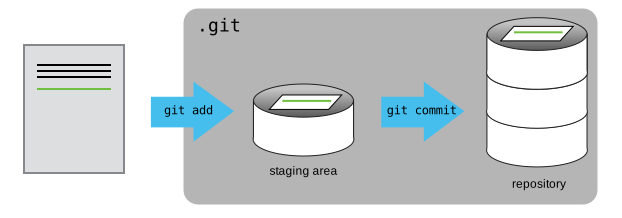
At the moment, our changes are only recorded locally, on our computer. If we wanted to work collaboratively with someone else they would have no way of seeing what we’ve done. We will fix that in the next episode by using Codeberg to share our work.
- When you initialize a Git repository in a directory, Git starts tracking the changes you make inside that directory.
- This tracking creates a history of the way the files have changed over time.
- Git uses a two-step process to record changes to your files. Changes to files must first be added to the staging area, then committed to the Git repository.
Content from Sharing your work
Last updated on 2026-10-19 | Edit this page
Estimated time: 75 minutes
Overview
Questions
- How can I use Git and Codeberg to share my work?
- How do I link a local Git repository to Codeberg?
- How do I move changes between a local Git repository and a Codeberg repository?
- How can I see the differences between my current file and my most recent commit?
Objectives
- create a remote repository on Codeberg
- link a local Git repository to a remote Codeberg repository
- move changes between the local and remote repositories using
pushandpull - examine the difference between an edited file and the file’s most recently committed version
The power of sharing
The real power of Git lies in being able to share your work with others and in being able to work collaboratively. The best way to do this is to use a remote hosting platform. For this lesson, we are using Codeberg. Let’s log in there now.
Create a repository on Codeberg
Once we have logged in to Codeberg, we can create a new repository by clicking the + icon in the upper-right corner of any page then selecting New repository. Let’s do this now.
- Click “New repository”
Clicking “New repository” will take you to a creation page with different options. For this workshop, we are not using most of the options available.
- Name your repository “hello-world”.
- Leave the repository public (do not tick “Make repository private”), so that your partner can see it later in the lesson.
Codeberg will offer to initialize the repository with a README, a
license or a .gitignore file. Do not do any of that for now
– we want you to start with a completely empty repository on
Codeberg.
- Click the “Create repository” button.
Choosing a license
When you are ready to use Codeberg to host your own work, you should review the different license options. Choosing a license is an important part of openly sharing your creative and research work online. For help in wading through the many types of open source licenses, please visit https://choosealicense.com/.
Connecting your local repository to the Codeberg repository
The next page that Codeberg displays contains some information to
help you connect your repository on Codeberg with your local repository
(on your own computer). To make this connection, we want to tell our
local repository that Codeberg is the remote repository. In
order to do that we need the information that Codeberg displays in the
“Quick guide” on this page.
We will use the Secure Shell (SSH) protocol for this lesson, so
please make sure that “SSH” is selected next to the address box and that
the address starts with git@codeberg.org:. It will look
something like this:
HTTPS vs. SSH
We use SSH here because, while it requires some additional configuration, it is a security protocol widely used by many applications. The steps below describe SSH at a minimum level for Codeberg.
In the previous episode we created a local repository on our own computer. Now we have also created a remote repository on Codeberg. But at this point, the two are completely isolated from each other. We want to link them together to synchronize them and share our project with the world.
To connect the repository on our own computer (local) to the repository we just created on Codeberg, we will use the commands provided by Codeberg under the heading “Pushing an existing repository from the command line”.
Let’s use these instructions now. Move back to your shell application and enter the first command:
Make sure to use the URL for your actual repository user name rather
than yourname: the only difference should be your username
instead of yourname.
Let’s breakdown the elements of the command. All commands related to
Git in the shell start by invoking the Git language by typing
git at the start. remote add is the command in
the Git language we use to configure a remote repository, e.g., another
Git repository that contains the same content as our local repository,
but that is not on our computer. origin is the nickname
we’re telling our local machine to use to for the following long web
address. After we enter this command, we can use origin to
refer to this specific repository on Codeberg instead of the URL.
We can check that it is set up correctly with the command:
OUTPUT
origin  git@codeberg.org:<your_codeberg_username>/hello-world.git (fetch)
origin  git@codeberg.org:<your_codeberg_username>/hello-world.git (push)
SSH Background and Setup
We still need to do a little more setup before we can actually connect to this remote repository. We need to set up a way for our local computer to authenticate with Codeberg so that Codeberg recognizes our computer as belonging to the same person who owns the Codeberg repository.
We will use SSH as our authentication method. SSH stands for Secure SHell protocol. SSH is a cryptographic network protocol that allows secure communication between computers using an otherwise insecure network.
SSH uses what is called a key pair – two keys that work together to validate access. One key is used publicly (the public key) and the other key is kept private (the private key).
You can think of the public key as a padlock, and only you have the key (the private key) to open it. You use the public key where you want a secure method of communication, such as your Codeberg account. You give this padlock, or public key, to Codeberg and say “lock the communications to my account with this so that only computers that have my private key can unlock communications and send Git commands as my Codeberg account.”
What we will do now is the minimum required to set up the SSH keys and add the public key to a Codeberg account. I’m not going to lie, this is a bit tedious and confusing. But you have to do it to get to the fun part, so hang in there.
The first thing we are going to do is check if this has already been done on the computer you’re on.
Keeping your keys secure
You shouldn’t really forget about your SSH keys, since they keep your account secure. It’s good practice to audit your secure shell keys every so often. Especially if you are using multiple computers to access your account.
We will run the list command (ls) to check what key
pairs already exist on your computer. In our command we use the
~ as the shorthand for “my home directory.”
Your output is going to look a little different depending on whether or not SSH has ever been set up on the computer you are using.
If you have not set up SSH, your output might look like this:
OUTPUT
ls: cannot access '/c/Users/YourName/.ssh': No such file or directoryIf SSH has been set up on the computer you’re using, the public and
private key pairs will be listed. The file names are either
id_ed25519/id_ed25519.pub or
id_rsa/id_rsa.pub depending on how the key
pairs were set up.
If you do not have SSH set up, let’s set it up now. Use this command to create key pairs:
OUTPUT
Generating public/private ed25519 key pair.
Enter file in which to save the key (/c/Users/YourName/.ssh/id_ed25519):
We want to use the default file, so just press Enter.
OUTPUT
Created directory '/c/Users/YourName/.ssh'.
Enter passphrase (empty for no passphrase):
Your computer is now asking you for a passphrase to protect this SSH key pair. We recommend that you use a passphrase and that you make a note of it. There is no “reset my password” option for this setup. If you forget your passphrase, you have to delete your existing key pair and do this setup again. It’s not a big deal, but easier if you don’t have to repeat it.
OUTPUT
Enter same passphrase again:After entering the same passphrase a second time, you will receive the confirmation
OUTPUT
Your identification has been saved in /c/Users/YourName/.ssh/id_ed25519
Your public key has been saved in /c/Users/YourName/.ssh/id_ed25519.pub
The key fingerprint is:
SHA256:SMSPIStNyA00KPxuYu94KpZgRAYjgt9g4BA4kFy3g1o yourname@domain.name
The key's randomart image is:
+--[ED25519 256]--+
|^B== o.          |
|%*=.*.+          |
|+=.E =.+         |
| .=.+.o..        |
|....  . S        |
|.+ o             |
|+ =              |
|.o.o             |
|oo+.             |
+----[SHA256]-----+
The “identification” is actually the private key. You should never share it. The public key is appropriately named. The “key fingerprint” is a shorter version of a public key.
Now that we have generated the SSH keys, we will find the SSH files when we check.
OUTPUT
drwxr-xr-x 1 YourName 197121   0 Jul 16 14:48 ./
drwxr-xr-x 1 YourName 197121   0 Jul 16 14:48 ../
-rw-r--r-- 1 YourName 197121 419 Jul 16 14:48 id_ed25519
-rw-r--r-- 1 YourName 197121 106 Jul 16 14:48 id_ed25519.pub
Now we need to give our public key (the padlock) over to Codeberg.
First, we need to copy the public key. Be sure to include the
.pub at the end, otherwise you’re looking at the private
key.
OUTPUT
ssh-ed25519 AAAAC3NzaC1lZDI1NTE5AAAAIDmRA3d51X0uu9wXek559gfn6UFNF69yZjChyBIU2qKI yourname@domain.nameCopy that entire line of output, and we will paste the copied text into Codeberg in the next step.
Now, going to codeberg.org, click on your profile icon in the top right corner to get the drop-down menu. Click “Settings,” then on the settings page, click “SSH / GPG keys” in the menu on the left side. In the “Manage SSH keys” section, click the “Add key” button. Now, you can add a key name (a person might use the name “My 2026 work laptop,” just a little description to remind themselves which computer this public key connects to). Paste your SSH key into the “Content” field, and click “Add key” to complete the setup.
Now that we’ve set that up, let’s check our authentication from the command line.
The first time you connect, SSH will ask whether you trust the host
codeberg.org. You can compare the fingerprint shown with
the ones published in the Codeberg
documentation, then type yes and press
Enter.
OUTPUT
Hi there, YourName! You've successfully authenticated with the key named My 2026 work laptop, but Forgejo does not provide shell access.
If this is unexpected, please log in with password and setup Forgejo under another user.
Pushing changes
Now we have established a connection between the two repositories,
but we still haven’t synchronized their content, so the remote
repository is still empty. To fix that, we will have to “push” our local
changes to the Codeberg repository. We do this using the
git push command:
OUTPUT
Enumerating objects: 3, done.
Counting objects: 100% (3/3), done.
Writing objects: 100% (3/3), 226 bytes | 226.00 KiB/s, done.
Total 3 (delta 0), reused 0 (delta 0), pack-reused 0
To codeberg.org:<your_codeberg_username>/hello-world.git
 * [new branch]      main -> main
branch 'main' set up to track 'origin/main'.
The nickname of our remote repository is “origin” and the default
local branch name is “main”. The -u flag tells git to
remember the parameters, so that next time we can simply run
git push and Git will know what to do.
Pushing our local changes to the Codeberg repository is sometimes
referred to as “pushing changes upstream to Codeberg”. The
word upstream here comes from the git flag we used earlier
in the command git push -u origin main. The flag
-u refers to --set-upstream, so when we say
pushing changes upstream, it refers to the remote repository.
If you set a passphrase for your SSH key, you will be prompted to enter it to complete the command.
When we do a git push, we will see Git ‘pushing’ changes
upstream to Codeberg. Because our file is very small, this won’t take
long but if we had made a lot of changes or were adding a very large
repository, we might have to wait a little longer. We can check where
we’re at with git status.
OUTPUT
On branch main
Your branch is up-to-date with 'origin/main'.
nothing to commit, working tree clean
This output lets us know where we are working (the main branch). We can also see that we have no changes to commit and everything is in order.
We can use the git diff command to see changes we have
made before making a commit. Open index.md with any text editor and
enter some text on a new line, for instance “A new line” or something
else. We will then use git diff to see the changes we
made:
OUTPUT
diff --git a/index.md b/index.md
index aed0629..989787e 100644
--- a/index.md
+++ b/index.md
@@ -1 +1,2 @@
-# Hello, world!
\ No newline at end of file
+# Hello, world!
+A new line
The command produces lots of information and it can be a bit overwhelming at first, but let’s go through some key information here:
- The first line tells us that Git is producing output similar to the
Unix
diffcommand, comparing the old and new versions of the file. - The second line tells exactly which versions of the file Git is
comparing;
aed0629and989787eare unique computer-generated identifiers for those versions. - The third and fourth lines once again show the name of the file being changed.
- The remaining lines are the most interesting; they show us the actual differences and the lines on which they occur. In particular, the + markers in the first column show where we have added lines.
We can now commit these changes:
If we are very forgetful and have already forgotten what we changed,
git log allows us to look at what we have been doing with
our git repository (in reverse chronological order, with the very latest
changes first).
OUTPUT
commit 8e2eb9920eaa0bf18a4adfa12474ad58b765fd06
Author: Your Name <your_email>
Date:   Mon Jun 5 12:41:45 2017 +0100

    Add another line

commit e9e8fd3f12b64fc3cbe8533e321ef2cdb1f4ed39
Author: Your Name <your_email>
Date:   Fri Jun 2 18:15:43 2017 +0100

    Add index.md
This shows us the two commits we have made and shows the messages we wrote. It is important to try to use meaningful commit messages when we make changes. This is especially important when we are working with other people who might not be able to guess as easily what our short cryptic messages might mean. Note that it is best practice to always write commit messages in the imperative (e.g. ‘Add index.md’, rather than ‘Adding index.md’).
Pushing changes (again)
Now, let’s have a look at the repository on Codeberg again (that is,
https://codeberg.org/some-librarian/hello-world with
some-librarian replaced with your username). We see that
the index.md file is there, but there is only one
commit:
And if you click on index.md you will see that it
contains the “Hello, world!” header, but not the new line we just
added.
This is because we haven’t yet pushed our local changes to the remote repository. This might seem like a mistake in design but it is often useful to make a lot of commits for small changes so you are able to make careful revisions later and you don’t necessarily want to push all these changes one by one.
Another benefit of this design is that you can make commits without being connected to internet.
But let’s push our changes now, using the git push
command:
OUTPUT
Enumerating objects: 5, done.
Counting objects: 100% (5/5), done.
Writing objects: 100% (3/3), 272 bytes | 272.00 KiB/s, done.
Total 3 (delta 0), reused 0 (delta 0), pack-reused 0
To codeberg.org:<your_codeberg_username>/hello-world.git
   e9e8fd3..8e2eb99  main -> main
And let’s check on Codeberg that we now have 2 commits there.
Branches can be configured with an “upstream” branch (a branch on a
remote repository), which is used automatically for push
and pull operations.
The main branch’s upstream wasn’t set when we created
it. The -u (or --set-upstream) flag tells
git push which remote branch to use; it also sets the
remote branch as the local branch’s upstream. Once we’ve set it, we
don’t need to specify the remote branch in future push and
pull operations. This saves on typing and means we won’t
push to or pull from the wrong remote
branch.
Pulling changes
When working with others, or when we’re making our own changes from different machines, we need a way of pulling those remote changes back into our local copy. For now, we can see how this works by making a change on the Codeberg website and then ‘pulling’ that change back to our computer.
Let’s go to our repository on Codeberg and make a change. Above the
list of files you will see a button “Add file”. Click it and select “New
file”. Name the file README.md, enter whatever you like,
scroll to the bottom, make sure “Commit directly to the
main branch” is selected and click “Commit changes” (the
default commit message will be “Add README.md”, which is fine for our
purposes).
The README file
It is good practice to add a README file to each project to give a brief overview of what the project is about. If you put your README file in your repository’s root directory, Codeberg will recognize and automatically surface your README to repository visitors
Our local repository is now out of sync with our remote repository,
so let’s fix that by pulling the remote changes into our local
repository using the git pull command.
OUTPUT
remote: Enumerating objects: 4, done.
remote: Counting objects: 100% (4/4), done.
remote: Compressing objects: 100% (2/2), done.
remote: Total 3 (delta 0), reused 0 (delta 0), pack-reused 0
Unpacking objects: 100% (3/3), done.
From codeberg.org:<your_codeberg_username>/hello-world
   8e2eb99..0f5a7b0  main     -> origin/main
Updating 8e2eb99..0f5a7b0
Fast-forward
 README.md | 1 +
 1 file changed, 1 insertion(+)
 create mode 100644 README.md
The above output shows that we have fast-forwarded our local
repository to include the file README.md. We could confirm this by
entering the ls command.
When we begin collaborating on more complex projects, we may have to consider more aspects of git functionality, but this should be a good start. In the next section, we can look more closely at collaborating and using Codeberg Pages to create a website for our project.
- remote repositories on Codeberg help you collaborate and share your work
-
pushis a Git verb for sending changes from the local repository to a remote repository -
pullis a Git verb for bringing changes from a remote repository to the local repository -
diffis a Git verb for viewing the difference between an edited file and the file’s most recent commit
Content from Review
Last updated on 2026-10-19 | Edit this page
Estimated time: 25 minutes
Overview
Questions
- How can I cement my understanding of Git’s functions?
Objectives
- rephrase Git commands using everyday language
- demonstrate Git’s functions by drawing or sketching
Let’s review
It is likely that some things won’t have stuck from the last hour. To try to reinforce how things work we can work in groups to develop diagrams to illustrate Git functions and language. This should make carrying out more complicated aspects of Git clearer in our heads.
If you are teaching this lesson over Zoom, you may find it preferable to run the review exercise in one large group instead of splitting out into breakout rooms. One way to adapt the exercise is to set up a shared online drawing board using a service such as Miro, and share the link so all the learners can access it.
Ask the learners to recall the commands and concepts they’ve used and add them to the board using, say, green sticky notes for Shell commands and yellow sticky notes for Git commands. Then use this as the basis for a quiz: ask the learners to explain what a command does, or describe an action and ask which command is needed. If you ask the learners to reply using the Zoom chat or Q&A, rather than verbally, it gives everyone a chance to answer.
As a next step, work together on some diagrams to illustrate key concepts such as commits and branches, the staging area, or how origin and cloned repositories relate. Use background shapes, arrows, lines and text as appropriate.
Finally, ask learners to work individually on their own sections of the drawing board; you could keep a topic back from the group activity specifically for this part of the exercise, or ask the learners to come up with their own versions of the collaborative drawings.
How would you explain it?
In groups:
- make a list of commands and concepts we’ve discussed in the first hour
- try to come up with synonyms or explanations for what the commands are doing
- try to ‘draw’ what different commands mean
- come up with your own analogies and diagrams to explain how Git works.
Here are some tips for illustrating the commands and concepts we’ve used with Git:
- try to express Git commands in a ‘non-Git’ way
- try to visualise what commits are doing to your repository
- sketch out how information flows from one repository to another.
Be as creative and artistic as you like!
If you want to practise more, feel free to keep making changes to your file and committing those changes. If you want to explore more git commands, search for some more online or visit the lesson resources.
- the language of Git can be confusing and intimidating
- rephrasing commands and drawing concepts can clarify Git’s workflow
Content from Codeberg Pages
Last updated on 2026-10-19 | Edit this page
Estimated time: 40 minutes
Overview
Questions
- What is Codeberg Pages?
- How can I use Codeberg Pages to collaborate and share my work?
Objectives
- create a
pagesbranch and push a website to it - publish the branch as a website with Codeberg Pages
- with a partner, experiment with collaborating on a Codeberg Pages website
- apply the workflow between local and remote repositories to collaborate on a website
Codeberg Pages
Codeberg
Pages is a service for publishing a website directly from a Git
repository on Codeberg. You put the files of your website (HTML, CSS,
images, …) into a branch called pages, and Codeberg Pages
makes them available at
https://yourname.codeberg.page/repository-name/.
Why Codeberg Pages is awesome!
Codeberg Pages allows you to version control your website. This is useful for a lot of different reasons. It allows you to keep a record of what changes you have made. It allows people to reference your website at a particular point in time and (if you make your source open) to see what it was like at that particular point in time. This is very useful for academic citations. Most people have had the experience of following up a reference to a website and either getting a 404 error or seeing something completely different. Although using versions on your site doesn’t guarantee this won’t happen, it does make it easier to manage old versions of your site.
Codeberg Pages also means that you can collaborate on a website with a lot of people without everyone having to communicate endlessly back and forwards about what changes need to be made, or have been made already. You can create ‘issues’ (things that need discussing or fixing), list things to do in the future, and allow other people visiting your website to quickly suggest, and help implement changes through pull requests.
What about Markdown?
Codeberg Pages publishes your files exactly as they are: it does not
convert Markdown into HTML. An index.md file would be shown
as plain text, so in this episode we write a small HTML page
instead.
If you prefer to write your website in Markdown, you can use a
static site generator (for example Hugo, Jekyll or Quarto) to turn your Markdown files into
HTML, and let a CI service such as Woodpecker CI or Forgejo Actions build
and push the result to the pages branch automatically. This
is exactly how the website of this lesson is made.
Create a pages branch
Up to now, all our commits went into the main branch. A
branch is a separate line of development in the same
repository. Codeberg Pages only looks at a branch named
pages, so let’s create it in our local
hello-world repository:
OUTPUT
Switched to a new branch 'pages'Here, switch tells Git to change the current branch, the
-c tells Git you want to create a new branch, and
pages is what it will be called. The new branch starts with
all the commits that are in main at the moment.
Now create a file called index.html with your text
editor:
and enter a minimal web page, for example:
HTML
<!DOCTYPE html>
<html lang="en">
  <head>
    <meta charset="utf-8">
    <title>Hello, world!</title>
  </head>
  <body>
    <h1>Hello, world!</h1>
    <p>This is my first website on Codeberg Pages.</p>
  </body>
</html>
Save the file, then add and commit it as usual:
Enable Codeberg Pages
Before we push the new branch, we need to tell Codeberg Pages that
our repository has a website. This is done with a webhook:
every time something is pushed to the pages branch,
Codeberg sends a short message to the Pages service, which then
publishes the new version of the site.
- Go to your
hello-worldrepository on Codeberg and click “Settings”. Make sure the repository is public: Codeberg Pages only publishes public repositories. - Click “Webhooks” in the menu on the left side, then “Add webhook” and select “Forgejo”.
- Enter
https://yourname.codeberg.page/hello-world/as the “Target URL”, withyournamereplaced by your Codeberg username. - Enter
pagesin the “Branch filter” field. - Click “Add webhook” at the bottom of the page.
Don’t test the webhook
The webhook page offers a “Test delivery” button. Don’t use it: the
test is expected to fail and does not tell you anything about whether
your site works. Push to the pages branch instead.
Push and view your site
Now push the new branch to Codeberg. As this is the first push of the
pages branch, we use -u again to set its
upstream:
If we now visit
https://some-librarian.codeberg.page/hello-world/ (with
some-librarian replaced by your username), we should see
the web page we just created. Usually it’s available within a few
seconds. If it isn’t, check the webhook in the repository settings:
under “Recent deliveries” you can see whether Codeberg was able to
notify the Pages service.
Challenge: Contributing to a page owned by someone else (slightly easier way)
To practice using Git, Codeberg and HTML we can contribute to a Codeberg Pages site. Pair up in groups of two (or more if needed) and do the exercises below together.
Go to
https://codeberg.org/some-librarian/hello-world, where “some-librarian” is the username of your exercise partner.-
Click on “Fork” in the upper right part of the screen to create a copy of the repository on your account. As you already have your own
hello-worldrepository, you will need to use a different name for it, such ashello-world-1. Once you have a fork of your partner’s repository, you can edit the files in your own fork directly. -
In your fork, use the branch selector above the file list to switch to the
pagesbranch. Click the “index.html” file, then click the edit pencil icon (“Edit file”). Now is a good chance to try some HTML. Add a paragraph (
<p>...</p>), a list (<ul><li>...</li></ul>) or a link (<a href="...">...</a>). The MDN introduction to HTML has many more examples.-
Once you are ready to commit, enter a short commit message, select “Create a new branch for this commit and start a pull request” and press “Propose file change” to avoid committing directly to the
pagesbranch. On the next screen, check that the pull request goes from the new branch in your fork into the
pagesbranch of your partner’s repository (Codeberg may suggestmainas the target, so change it if necessary). Review the changes, add an explanation and click “Create pull request”.Your partner should now see a pull request under the “Pull requests” tab of their repository and can accept the changes there by clicking the “Merge” button. Try this. A moment later, the change will be visible on your partner’s website.
This whole process of making a fork and a pull request might seem a bit cumbersome. Try to think of why it was needed? And why it’s called “pull request”?
We made a fork and a pull request because we did not have permission to edit (or commit) the repository directly. A fork is a copy of the repository that we can edit. By making a pull request we ask the owner of the repository if they would like to accept (pull in) the changes from our fork (our copy) into their version. The owner can then review the changes and choose to accept or reject them.
You can open pull requests on any public repository you find on Codeberg. If you are a group of people who plan to collaborate closely, on the other hand, it’s more practical to grant everyone access to commit directly instead (in the repository settings under “Collaborators”).
Branching and merging
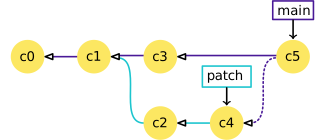
Branches get their name because you can create a new one (say, “patch”) that splits off from an existing one like “main”, allowing different sets of changes to be made in parallel. Later on, Git can take the changes from “patch” and merge (copy) them into the “main” branch. In the last challenge, Codeberg did all this for us in the background.
Optional challenge: Contributing to a page owned by someone else (slightly more complicated way)
Instead of making edits on the Codeberg website you can ‘clone’ the fork to your local machine and work there. There are several reasons why you might want to do this:
- you need to move content from one file to another;
- you need to make changes to several files at once;
- you find it easier to work in your desktop software than in a web form.
Pair up in groups of two (or more if needed) and follow the steps below together. If you have already tackled the previous challenge, you can use the fork you created there and skip to step 3.
Go to
https://codeberg.org/some-librarian/hello-world, where “some-librarian” is the username of your exercise partner.Click on “Fork” in the upper right part of the screen to create a copy of that repository on your account. As you already have your own
hello-worldrepository, you will need to use a different name for it, such ashello-world-1.-
In your own fork, find the clone address above the list of files and copy it. Just like when you connected your local repository to Codeberg, make sure “SSH” is selected, so the link starts with
git@codeberg.org:. -
Go back to your shell terminal window. If you’re in your own Git repository, use the
cdcommand to come out of it:Change the following command to use the link you just copied and run it:
The
clonecommand creates a directory on your computer containing the current state of the repository and its full version history. -
Enter the directory that Git just created and switch to the
pagesbranch: -
Create a new branch to hold the changes you’re about to make:
Open up the
index.htmland start editing it.-
After saving the file, add it, commit it with a short message describing the change:
-
Push your new branch up to your fork on Codeberg:
-
Git will show you a message from Codeberg containing a link for starting a new pull request:
OUTPUT
remote:
remote: Create a new pull request for 'my-patch-1':
remote:   https://codeberg.org/<your_codeberg_username>/hello-world-1/compare/main...my-patch-1
remote:
You can visit that link in your browser, or go to your partner’s repository, open the “Pull requests” tab and click “New pull request”.
Make sure that the pull request goes into the
pagesbranch of your partner’s repository and comes from themy-patch-1branch of your fork. The next screen lets you add a description to explain your changes to the repository owner, and change the title to make it clearer (this is especially useful if you make a single pull request for multiple commits). When you’re ready, click on the “Create pull request” button.Your partner should now see a pull request under the “Pull requests” tab and can accept the changes there by clicking “Merge”. Try this.
Optional challenge: Adding a second page
A website usually consists of more than one page. Try adding another HTML page to your repository. You could do this on the command line or directly on Codeberg. The steps below are for working directly on Codeberg:
-
Make sure you are looking at the
pagesbranch of your repository. To add a new file directly on Codeberg, click “Add file” and then “New file”. Name it
test.html, add some HTML and click “Commit changes”.Try opening
https://some-librarian.codeberg.page/hello-world/test.html(replace “some-librarian” with your username).Link the new page from your
index.htmlwith<a href="test.html">My test page</a>.
- Codeberg Pages publishes the
pagesbranch of a public repository as a website that is version controlled and accessible for collaboration - Codeberg Pages serves files as they are; Markdown needs to be converted to HTML first, for example by a static site generator
- Collaborating on a Codeberg Pages website uses the same Git/Codeberg workflow you learned for collaborating via a Codeberg repository