
All in One View
Content from Getting Started
Last updated on 2026-10-19 | Edit this page
Overview
Questions
- How can I identify and use key features of JupyterLab to create and manage a Python notebook?
- How do I run Python code in JupyterLab, and how can I see and interpret the results?
Objectives
- Identify applications of Python in library and information science environments by the end of this lesson.
- Launch JupyterLab and create a new Jupyter Notebook.
- Navigate the JupyterLab interface, including file browsing, cell creation, and cell execution, with confidence.
- Write and execute Python code in a Jupyter Notebook cell, observing the output and modifying code as needed.
- Save a Jupyter Notebook as an .ipynb file and verify the file’s location in the directory within the session.
Why Python?
Python is a popular programming language for tasks such as data collection, cleaning, and analysis. Python can help you to create reproducible workflows to accomplish repetitive tasks more efficiently.
This lesson starts with the basics of the Python language and then shows how to analyse tabular data with the pandas library, using data on article processing charges (APCs) from OpenAPC, and how to retrieve publication metadata from the DataCite API.
Python in Libraries
There are a lot of ways that library and information science folks use Python in their work. Go around the room and have helpers and co-teachers share how they have used Python.
Learners: Can you think of other ways to use Python in libraries? Do you have hopes for how you’d like to use Python in the future?
Here a few areas where you might apply Python in your work.
Metadata work. Many cataloging teams use Python to migrate, transform and enrich metadata that they receive from different sources. For example, the pymarc library is a popular Python package for working with MARC21 records.
Collection and citation analysis. Python can automate workflows to analyze library collections. In cases where spreadsheets and OpenRefine are unable to support specific forms of analysis, Python is a more flexible and powerful tool.
Assessment. Library workers often need to collect metrics or statistics on some aspect of their work. Python can be a valuable tool to collect, clean, analyze, and visualize that data in a consistent way over time.
Accessing data. Researchers often use Python to collect data (including textual data) from websites and social media platforms. Academic librarians are often well-positioned to help teach these researchers how to use Python for web scraping or querying Application Programming Interfaces (APIs) to access the data they need.
Analyzing data. Python is widely used by scholars who are embarking on different forms of computational research (e.g., network analysis, natural language processing, machine learning). Library workers can leverage Python for their own research in these areas, but also take part in larger networks of academic support related to data science, computational social sciences, and/or digital humanities.
Use JupyterLab to edit and run Python code.
If you haven’t already done so, see the setup
instructions for details on how to install JupyterLab and Python
using Miniforge. Please also create a folder called
lc-python on your Desktop, in which we will save our
notebooks. All data used in this lesson is downloaded directly from the
web during the lesson.
Getting started with JupyterLab
To run Python, we are going to use Jupyter Notebooks via JupyterLab. Jupyter notebooks are common tools for data science and visualization, and serve as a convenient environment for running Python code interactively where we can view and share the results of our Python code.
Alternatives to Juypter
There are other ways of editing, managing, and running Python code. Software developers often use an integrated development environment (IDE) like PyCharm, Spyder or Visual Studio Code (VS Code), to create and edit Python scripts. Others use text editors like Vim or Emacs to hand-code Python. After editing and saving Python scripts you can execute those programs within an IDE or directly on the command line.
Jupyter notebooks let us execute and view the results of our Python code immediately within the notebook. JupyterLab has several other handy features:
- You can easily type, edit, and copy and paste blocks of code.
- It allows you to annotate your code with links, different sized text, bullets, etc. to make it more accessible to you and your collaborators.
- It allows you to display figures next to the code to better explore your data and visualize the results of your analysis.
- Each notebook contains one or more cells that contain code, text, or images.
Start JupyterLab
Once you have created the lc-python directory on your
Desktop, you can start JupyterLab by opening a shell command line
interface.
Mac users - Command Line
- Press the cmd + spacebar keys and search for
Terminal. Click the result or press return. (You can also findTerminalin yourApplicationsfolder, underUtilities.) - After you have launched Terminal, change directories to the
lc-pythonfolder you created earlier. - Next run
conda activate carpentriesto launch a Python environment which includes Jupyter Notebooks and other tools we will need to proceed through the lesson. - Finally, type
jupyter labwhich should open a browser window where you can run Jupyter Notebooks.
Note that the $ sign is used to indicate a command to be
typed on the command prompt, but we never type the $ sign
itself, just what follows after it.
Windows users - Command Line
To start the JupyterLab server you will need to access the Anaconda Prompt.
- Press the Windows Logo Key and search for
Miniforge Prompt, click the result or press enter. - Once you have launched the Miniforge Prompt, change directories to
the
lc-pythonfolder you created earlier. (The example below assumes a starting path ofC:\Users\username) - Next run
conda activate carpentriesto launch a Python environment which includes Jupyter Notebooks and other tools we will need to proceed through the lesson. - Finally, type
jupyter labwhich should open a browser window where you can run Jupyter Notebooks.
Note that the $ sign is used to indicate a command to be
typed on the command prompt, but we never type the $ sign
itself, just what follows after it.
The JupyterLab Interface
Launching JupyterLab opens a new tab or window in your preferred web
browser. While JupyterLab enables you to run code from your browser, it
does not require you to be online. If you take a look at the URL in your
browser address bar, you should see that the environment is located at
your localhost, meaning it is running from your computer:
http://localhost:8888/lab.
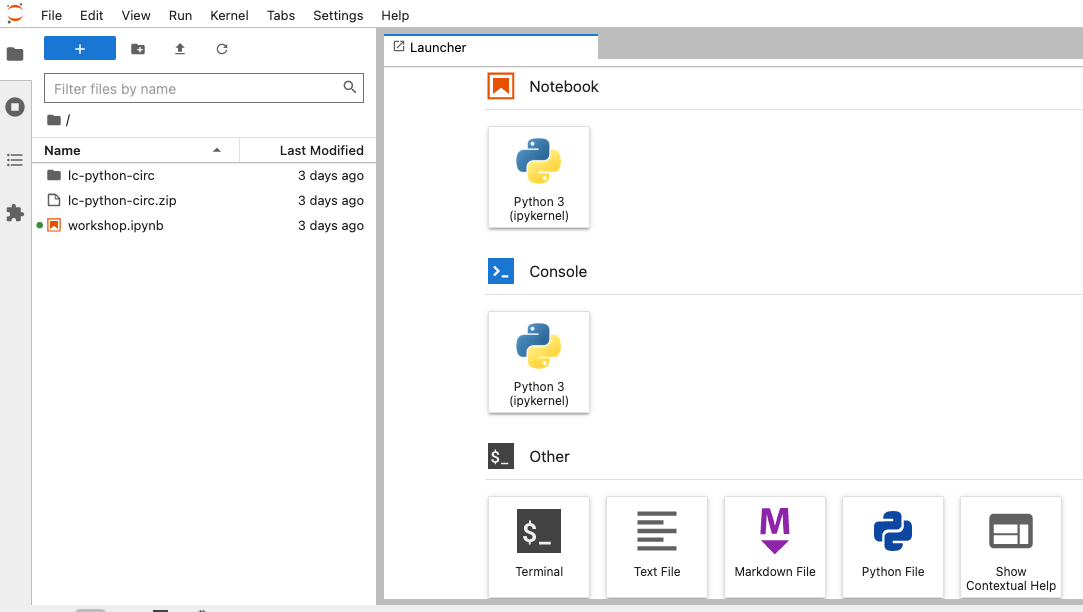
When you first open JupyterLab you will see two main panels. In the
left sidebar is your file browser, which shows the contents of the
lc-python folder.
Creating a Juypter Notebook
To the right you will see a Launcher tab. Here we have
options to launch a Python 3 notebook, a Terminal (where we can use
shell commands), text files, and other items. For now, we want to launch
a new Python 3 notebook, so click once on the
Python 3 (ipykernel) button underneath the Notebook header.
You can also create a new notebook by selecting New ->
Notebook from the File menu in the Menu Bar.
When you start a new Notebook you should see a new tab labeled
Untitled.ipynb. You will also see this file listed in the
file browser to the left. Right-click on the Untitled.ipynb
file in the file browser and choose Rename from the
dropdown options. Let’s call the notebook file,
workshop.ipynb.
JupyterLab? What about Jupyter notebooks? Python notebooks? IPython?
JupyterLab is the next stage in the evolution of the Jupyter Notebook. If you have prior experience working with Jupyter notebooks, then you will have a good idea of how to work with JupyterLab. Jupyter was created as a spinoff of IPython in 2014, and includes interactive computing support for languages other than just Python, including R and Julia. While you’ll still see some references to Python and IPython notebooks, IPython notebooks are officially deprecated in favor of Jupyter notebooks.
We will share more features of the JupyterLab environment as we advance through the lesson, but for now let’s turn to how to run Python code.
Running Python code
Jupyter allows you to add code and formatted text in different types of blocks called cells. By default, each new cell in a Jupyter Notebook will be a “code cell” that allows you to input and run Python code. Let’s start by having Python do some arithmetic for us.
In the first cell type 7 * 3, and then press the
Shift+Return keys together to execute the contents
of the cell. (You can also run a cell by making sure your cursor is in
the cell and choosing Run > Run Selected Cells or
selecting the “Play” icon (the sideways triangle) at the top of the
noteboook.)
You should see the output appear immediately below the cell, and Jupyter will also create a new code cell for you.
If you move your cursor back to the first cell, just after the
7 * 3 code, and hit the Return key (without
shift), you should see a new line in the cell where you can add more
Python code. Let’s add another calculation to the same cell:
While Python runs both calculations Juypter will only display the output from the last line of code in a specific cell, unless you tell it to do otherwise.
Editing the notebook
You can use the icons at the top of your notebook to edit the cells in your Notebook:
- The
+icon adds a new cell below the selected cell. - The scissors icon will delete the current cell.
You can move cells around in your notebook by hovering over the left-hand margin of a cell until your cursor changes into a four-pointed arrow, and then dragging and dropping the cell where you want it.
Markdown
You can add text to a Juypter notebook by selecting a cell, and
changing the dropdown above the notebook from Code to
Markdown. Markdown is a lightweight language for formatting
text. This feature allows you to annotate your code, add headers, and
write documentation to help explain the code. While we won’t cover
Markdown in this lesson, there are many helpful online guides out there:
- Markdown
for Jupyter Cheatsheet (IBM) - Markdown Guide (Matt Cone)
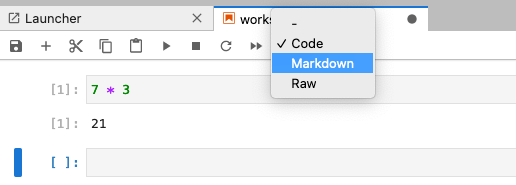
You can also use “hotkeys”” to change Jupyter cells from Code to Markdown and back:
- Click on the code cell that you want to convert to a Markdown cell.
- Press the Esc key to enter command mode.
- Press the M key to convert the cell to Markdown.
- Press the y key to convert the cell back to Code.
- You can launch JupyterLab from the command line or from Anaconda Navigator.
- You can use a JupyterLab notebook to edit and run Python.
- Notebooks can include both code and markdown (text) cells.
Content from Variables and Data Types
Last updated on 2026-10-19 | Edit this page
Overview
Questions
- How do I run my first Python command?
- How can I store values in Python?
- What kinds of data can Python work with?
Objectives
- Use
print()to display values in a Jupyter notebook. - Write comments to explain code.
- Assign values to variables.
- Name and identify the basic data types
str,int,float, andbool.
First command
You can use the built-in print() function to print
Python objects, such as a string, to the Jupyter notebook output. We
will explore functions in more detail later in this lesson. The objects
that we want to print are written inside the parentheses, and these are
known as the arguments of the print()
function.
OUTPUT
Hello world!Comments
The code tells you “how”, comments tell you “why”. Everything after a
# on a line is ignored by Python.
OUTPUT
Hello world!Markdown cells
Besides code cells, Jupyter notebooks have Markdown cells where you can provide context for your code. You can write text in italics or bold, or even both, add headings, lists, links and much more.
Variables
A variable is a name given to a value. In Python, the =
symbol is used to assign a value to a variable. In this example, Python
assigns the value "Lovelace" to the variable
name.
PYTHON
# Variables and assignment
# Lovelace: Ada Lovelace, mathematician, wrote the first computer program
name = "Lovelace"
print(name)
OUTPUT
LovelaceNaming variables
Variable names:
- cannot start with a digit
- cannot contain spaces, quotation marks, or other punctuation
-
may contain an underscore (typically used to separate words
in long variable names, e.g.
first_name) - are case sensitive:
nameandNameare different variables.
Data types
Every value in Python has a type. The most basic types are strings, integers, floating point numbers and booleans.
OUTPUT
AdaOUTPUT
37OUTPUT
1.7123PYTHON
# Boolean (bool) - One of two values
knows_math = True
print(knows_math)
likes_gardening = False
print(likes_gardening)
OUTPUT
True
False
You can use the built-in function type() to find out the
type of a value.
OUTPUT
strDisplaying values in Jupyter
In Jupyter notebooks, you can omit the print() function
for objects, such as variables, that appear on the final line of a cell.
If the final line of a Jupyter cell includes the name of a variable, its
value will be displayed in the notebook when the cell is run. Only the
last line is shown, though:
OUTPUT
37OUTPUT
Lovelace
37What type is it?
What is the type of each of the following values? Check your guesses
with type().
"2025"202520.25False"False"
-
str, because the value is in quotation marks intfloatbool-
str, again because of the quotation marks
- Use
print()to display values. - Use
#to add comments that explain why the code does what it does. - Use
=to assign a value to a variable. - Basic data types are strings (
str), integers (int), floating point numbers (float), and booleans (bool). - Use
type()to find out the type of a value. - Jupyter displays the value of the last line of a cell.
Content from Operators, Functions and Methods
Last updated on 2026-10-19 | Edit this page
Overview
Questions
- What can I do with values of different types?
- What happens when I combine values of different types?
- What are functions and methods?
Objectives
- Use arithmetic operators on numbers and strings.
- Read and interpret error messages.
- Convert values from one type to another.
- Call built-in functions and string methods.
We continue with the variables from the previous episode:
Operators
An object’s type determines what the program can do with it.
OUTPUT
10OUTPUT
3700The same operators also work on strings, but they do something different:
OUTPUT
'LovelaceLovelace'OUTPUT
'LovelaceLovelaceLovelaceLovelaceLovelaceLovelaceLovelaceLovelaceLovelaceLovelace'We get an error if we try to add a number to a string.
ERROR
TypeError: can only concatenate str (not "int") to strOUTPUT
'Lovelace10'Reading error messages
Error messages can look intimidating, but they are there to help you.
Read the last line first: it tells you the type of the error
(here a TypeError) and a short description of what went
wrong. Above it, Python shows you the line of code where the error
happened.
Dividing two numbers always results in a float:
OUTPUT
0.04627837837837838OUTPUT
floatType conversion
Data that we read from files or from the web often arrives as text, even if it looks like a number.
ERROR
TypeError: unsupported operand type(s) for /: 'str' and 'int'OUTPUT
5.0Similarly, str() converts a value to a string and
float() converts it to a floating point number.
Functions and methods
The len() function tells us the length of an item. In
the case of a string, for example, it tells us how many characters it
contains.
OUTPUT
8Methods are special types of function that are always bound to an object, the thing on the left of the dot. For now, the difference between a function and a method is not that relevant.
OUTPUT
'LOVELACE'OUTPUT
'Lovelace'OUTPUT
2OUTPUT
'Love is everywhere'Getting help
Use the built-in function help() to see the
documentation of a function or method, e.g. help(len) or
help(name.replace). In Jupyter, you can also put the cursor
inside the parentheses and press Shift+Tab.
String methods
Given title = "introduction to python", use string
methods to
- print the title in capital letters,
- count how many times the letter
"o"occurs, - replace
"python"with"pandas".
- The type of a value determines what an operator does with it.
- Read error messages from the bottom up: the last line names the error.
- Use
int(),float()andstr()to convert between types. - Functions are called with
function(arguments), methods withobject.method(arguments). - String methods return a new value and do not change the original string.
Content from Lists and Dictionaries
Last updated on 2026-10-19 | Edit this page
Overview
Questions
- How can I store many values together?
- How can I store and retrieve values by name?
Objectives
- Create lists and access their elements by index.
- Select parts of a list with slicing.
- Create dictionaries and look up values by key.
Lists
The most popular type of data collection in Python is the list. Lists have two important characteristics:
- They are mutable, meaning they can be changed after creation.
- They are heterogeneous, meaning they can store values of many different types.
To create a new list, put some values in square brackets, separated by commas. Let’s create a short list of names.
PYTHON
# Lovelace: Ada Lovelace, mathematician, wrote the first computer program
# Hopper: Grace Hopper, computing pioneer, invented the first compiler
# Noether: Emmy Noether, mathematician, pioneer of abstract algebra
# Turing: Alan Turing, foundations of computer science
names = ["Lovelace", "Hopper", "Noether", "Turing"]
Indexing
We can use index numbers to reference elements in a list. Python uses
square brackets ([ and ]) to access single
elements of objects that can be decomposed into parts. Counting starts
at 0.
OUTPUT
'Lovelace'OUTPUT
'Hopper'OUTPUT
'Noether'You can also use negative indices: names[-1] is the last
element of a list, names[-2] the second last, and so
on.
OUTPUT
'Turing'Slicing
We can also use index numbers to select a slice of a list.
The slice names[0:3] starts at index 0 and
stops before index 3.
OUTPUT
['Lovelace', 'Hopper', 'Noether']If you leave out the start or the end, the slice starts at the beginning or goes until the end of the list.
OUTPUT
['Lovelace', 'Hopper']OUTPUT
['Noether', 'Turing']Strings can be indexed, too
Indexing and slicing also work on strings: "Lovelace"[0]
is 'L' and "Lovelace"[:4] is
'Love'. More on slicing: https://stackoverflow.com/questions/509211/how-slicing-in-python-works
Slicing practice
Using the list names, write code that returns
['Hopper', 'Noether']- the last two names
- the number of names in the list
Dictionaries
Whereas a list is simply a collection of elements, a dictionary stores key-value pairs. Put into plain English, it lets you store and retrieve data values by name. Dictionaries are written with curly brackets, and each key is separated from its value by a colon.
PYTHON
authors_and_birth_years = {"Lovelace": 1815,
                           "Hopper": 1906,
                           "Noether": 1882,
"Turing": 1912}OUTPUT
1906Keys are case sensitive. If a key does not exist, Python raises a
KeyError:
ERROR
KeyError: 'HOPPER'Extend the dictionary
Add the computer scientist Margaret Hamilton (born 1936) to
authors_and_birth_years and then look up her birth
year.
Hint: you can assign a new value with
dictionary[key] = value.
- A list stores many values in order:
[value1, value2, ...]. - Use
list[index]to access an element; indexing starts at0. - Use
list[start:stop]to select a slice;stopis not included. - A dictionary stores key-value pairs:
{key: value, ...}. - Use
dictionary[key]to look up a value.
Content from Loops and Conditionals
Last updated on 2026-10-19 | Edit this page
Overview
Questions
- How can I do the same thing for many values?
- How can my program make decisions?
Objectives
- Use a
forloop to repeat an operation for each element of a list. - Use
if,elifandelseto run code only under certain conditions.
For loops
A for loop repeats an operation once for each element in
a collection. The general structure of a loop is:
- We can name the loop variable anything we like.
- There must be a colon at the end of the line that starts the loop.
- We must indent anything that we want to run inside the loop. Unlike
in many other programming languages, there is no command to signify the
end of the loop body. Anything indented after the
forstatement belongs to the loop.
PYTHON
names = ["Lovelace", "Hopper", "Noether", "Turing"]

for person in names:
    print(person + " did awesome stuff.")
OUTPUT
Lovelace did awesome stuff.
Hopper did awesome stuff.
Noether did awesome stuff.
Turing did awesome stuff.
Loops are a robust way of dealing with collections such as lists. Even if the values in the list change, the loop will still work.
As with all variable names, it is helpful to give loop variables
meaningful names that you will understand as your code grows. For
example, for person in names is easier to understand than
for kitten in names.
Conditions and if statements
An if statement is a conditional statement that
determines whether a block of code is executed. The syntax of an
if statement is similar to that of a for
statement:
- The first line begins with
ifand ends with a colon. - The body is indented (usually by four spaces).
OUTPUT
It's warmThe condition itself is just a value of type bool:
OUTPUT
TrueWe can use an else statement following an
if statement to specify an alternative code block to
execute when the if branch is not taken.
OUTPUT
It's coldYou can use elif (short for “else if”) to provide
several alternative choices, each with its own test. An
elif statement must always follow an if
statement and come before the else statement (the
catch-all).
PYTHON
temp = 15
if temp >= 25:
    print("It's hot")
elif temp >= 15:
    print("It's warm")
else:
    print("It's cold")
OUTPUT
It's warmConditions are tested in order and only once. Python steps through the branches of the conditional statement in order, testing each one in turn, so the order of your statements matters.
Comparison operators
-
==equal to (note the two equals signs!) -
!=not equal to -
>and<greater than, less than -
>=and<=greater than or equal to, less than or equal to
Combine loops and conditionals
Print only the names of the people in
authors_and_birth_years who were born before 1900.
- A
forloop runs its indented body once for each element of a collection. - Use
if,elifandelseto choose which code to run. - Conditions are tested in order; the first one that is
Truewins. - Indentation defines which lines belong to a loop or an
ifstatement.
Content from Introduction to pandas
Last updated on 2026-10-19 | Edit this page
Overview
Questions
- How can I work with tabular data in Python?
- How much did a university pay on average for article processing charges?
Objectives
- Import a library and use its functions.
- Download a CSV file and read it into a pandas DataFrame.
- Inspect, select and filter data in a DataFrame.
- Calculate simple statistics and plot a column.
Libraries
Once we have mastered the core language of Python, there are many libraries (i.e. collections of reusable code) that offer additional functionality. Some come with Python itself (the standard library), others are written and shared by the community. One very popular example is pandas, which was written to work with tabular data.
Every good library should have good documentation. The pandas getting started guide answers questions such as:
- What kind of data does pandas handle? pandas works with so-called DataFrames. The concept comes from the R programming language, and a DataFrame is simply a table consisting of columns and rows. The rows are labelled by an index.
- How do I read and write tabular data? pandas can read many file formats such as CSV (comma-separated values), TSV (tab-separated values) and XLSX (Excel files), as long as the data is tabular.
We can then filter the DataFrame, calculate new values from its columns, plot the data, and finally save the result in the format we need (e.g. CSV, Excel, JSON or HTML).
The data: article processing charges
APC stands for Article Processing Charges, the fees that publishers charge for publishing an article open access. OpenAPC openly collects data on how much institutions pay for APCs. The data is published in the GitHub repository https://github.com/OpenAPC/openapc-de.
In the data folder of that repository there is a folder
for each institution. We will look at the data from FU Berlin for the
year 2015: APC_FU_Berlin_2015.csv.
GitHub renders the CSV file as a nicely formatted table with columns such as institution, period, price in euros, DOI, publisher and journal title. If we click on Raw, we can see the file as it really is: plain text, with commas separating the values and the column names in the first row.
Today we want to find out how much FU Berlin paid on average for APCs, and how the prices are distributed.
Download and read the data
We import two libraries: urllib.request from the
standard library to download files, and pandas, which is by convention
imported under the short name pd.
PYTHON
# Set the source URL
url = "https://raw.githubusercontent.com/OpenAPC/openapc-de/master/data/fuberlin/APC_FU_Berlin_2015.csv"
apc_file = "openapc.csv"The file openapc.csv should now appear in the JupyterLab
file browser. Next, we read it into a DataFrame with
pd.read_csv():
Inspect the DataFrame
If the last line of a cell is a DataFrame, Jupyter displays it as a
nicely formatted table. For long tables, only the first and last rows
are shown. Use .head() to look at the first five rows:
OUTPUT
  institution  period     euro  ...  ut  url  doaj
0   FU Berlin    2015  2000.00  ... NaN  NaN  True
1   FU Berlin    2015  1503.12  ... NaN  NaN  True
2   FU Berlin    2015  2000.00  ... NaN  NaN  True
3   FU Berlin    2015  2000.00  ... NaN  NaN  True
4   FU Berlin    2015  1805.00  ... NaN  NaN  True

[5 rows x 17 columns]
PYTHON
# Change the maximum number of rows displayed to 100
pd.set_option("display.max_rows", 100)
apcsOUTPUT
(61, 17)OUTPUT
Index(['institution', 'period', 'euro', 'doi', 'is_hybrid', 'publisher',
       'journal_full_title', 'issn', 'issn_print', 'issn_electronic',
       'license_ref', 'indexed_in_crossref', 'pmid', 'pmcid', 'ut', 'url',
       'doaj'],
      dtype='object')
Select columns and calculate statistics
A single column is selected with square brackets and the column name. The result is a pandas Series.
OUTPUT
0     2000.00
1     1503.12
2     2000.00
3     2000.00
4     1805.00
       ...
56    1731.45
57    1600.00
58     219.84
59    1386.35
60    2000.00
Name: euro, Length: 61, dtype: float64
A Series has methods to calculate statistics:
OUTPUT
np.float64(2000.0)OUTPUT
np.float64(219.84)OUTPUT
np.float64(1419.6080327868851)OUTPUT
np.float64(1410.07)
apcs.euro
vs. apcs["euro"]
You can also access a column as an attribute,
e.g. apcs.euro. This is less safe, as it fails if the
column name contains spaces or has the same name as a DataFrame method.
In general, spaces in column names should be avoided.
Filter rows
Comparing a column with a value returns a Series of True
and False values, one for each row:
OUTPUT
0      True
1     False
2      True
3      True
4     False
      ...
Name: euro, dtype: bool
We can use this Series inside square brackets to keep only the rows
where the value is True:
To display several columns, pass a list of column names:
OUTPUT
                           publisher                  journal_full_title     euro
0                    Springer Nature             npj Quantum Information  2000.00
1    American Physical Society (APS)                   Physical Review X  1503.12
2                    Springer Nature               Nature Communications  2000.00
3   Public Library of Science (PLoS)                      PLOS Pathogens  2000.00
4                    Springer Nature                       Gut Pathogens  1805.00
...Filtering data
- Filter all rows in which the
"euro"value is above the average. - Show only the
"journal_full_title","euro"and"publisher"columns for these entries.
PYTHON
average_apc = apcs["euro"].mean()                 # Calculate average
over_average_apcs = apcs[apcs["euro"] > average_apc]  # Apply filter
over_average_apcs[["journal_full_title", "euro", "publisher"]]
OUTPUT
        journal_full_title     euro                         publisher
0  npj Quantum Information  2000.00                   Springer Nature
1        Physical Review X  1503.12   American Physical Society (APS)
2    Nature Communications  2000.00                   Springer Nature
3           PLOS Pathogens  2000.00  Public Library of Science (PLoS)
4            Gut Pathogens  1805.00                   Springer Nature
...
30 of the 61 articles cost more than the average.
Plot the data
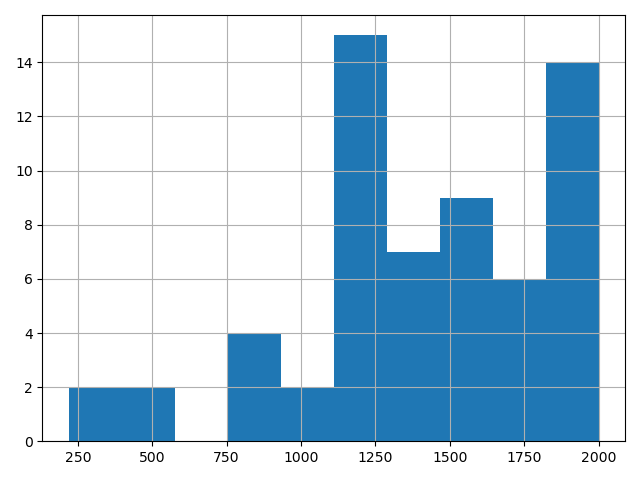
pandas can plot data directly (using the matplotlib library in the background). A histogram shows how often APCs in a certain price range occur:
PYTHON
# Change the number of bins and the colour
apcs["euro"].hist(bins=20, color="black")  # bins = number of equal parts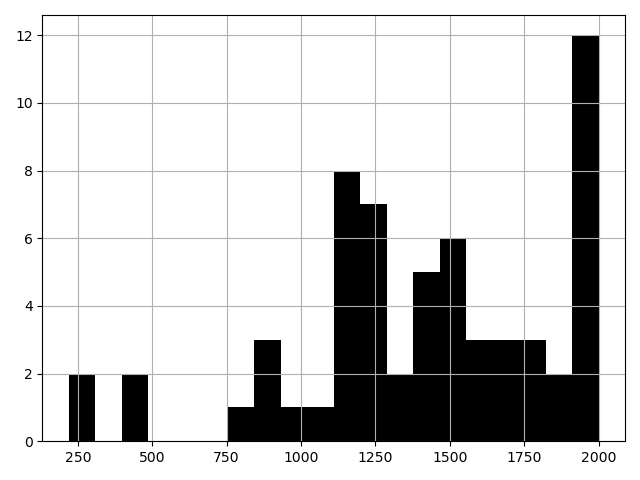
value_counts() counts how often each value occurs in a
column:
OUTPUT
publisher
Frontiers Media SA                                  16
Public Library of Science (PLoS)                    13
Springer Nature                                     13
Copernicus GmbH                                      3
Schweizerbart                                        3
Hindawi Publishing Corporation                       3
Scientific Research Publishing, Inc,                 2
IOP Publishing                                       1
PAGEPress Publications                               1
American Physical Society (APS)                      1
Elsevier BV                                          1
Inter-Research Science Center                        1
MDPI AG                                              1
Cogitatio                                            1
The Korean Society of Veterinary Science (KAMJE)     1
Name: count, dtype: int64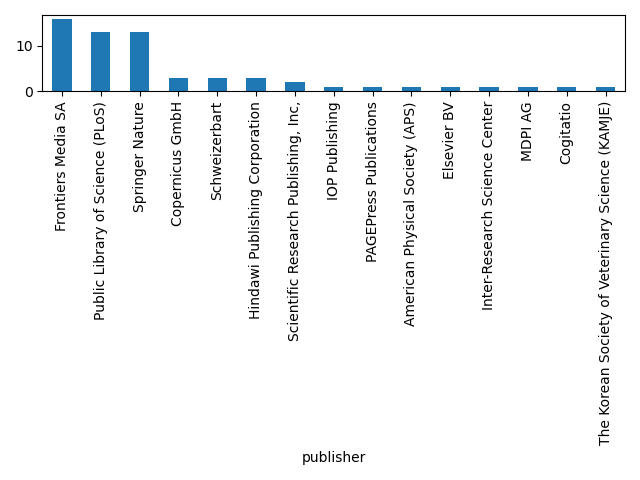
Save the result
Use the method .to_csv() to save
over_average_apcs from the exercise above to a file called
expensive_apcs.csv. Check in the JupyterLab file browser
that the file was created.
Further reading
- pandas official documentation
- 10 Minutes to pandas
- Python Data Science Handbook by Jake VanderPlas
- Software Carpentry: Plotting and Programming in Python
- Use
import library as aliasto load a library. -
pd.read_csv()reads a CSV file into a DataFrame. - Use
.head(),.shapeand.columnsto get an overview of a DataFrame. -
df["column"]selects a column,df[["col1", "col2"]]several columns. -
df[condition]keeps only the rows where the condition isTrue. - Series have methods for statistics (
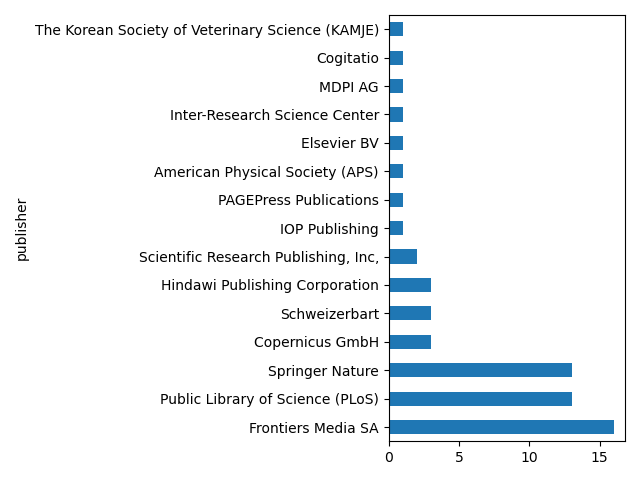
.mean(),.median(), …) and plotting (.hist(),.plot.bar(), …).
Content from Retrieving Metadata from an API
Last updated on 2026-10-19 | Edit this page
Overview
Questions
- How can I get metadata for a DOI automatically?
- How do I work with JSON data in Python?
Objectives
- Explain what a web API is.
- Retrieve metadata for a DOI from the DataCite REST API.
- Navigate nested JSON data made of dictionaries and lists.
- Use a loop to retrieve metadata for several DOIs.
DataCite
DataCite is a registration agency for DOIs, mainly for research data, software and other research outputs. Repositories such as Zenodo and figshare register their DOIs with DataCite.
You can search the DataCite metadata manually in DataCite Commons:
- Search for
gitin Works. - Filter by Dataset.
- Open a result, and under Download open the metadata as DataCite JSON.
This is the same data that we will now retrieve with Python. Instead of using a web interface, programs can request data from a web service through an Application Programming Interface (API). The DataCite REST API returns the metadata for a DOI if we send a request to a URL that contains the DOI.
Request the metadata for a DOI
PYTHON
import urllib.request
import json

base_url = "https://api.datacite.org/application/vnd.datacite.datacite+json/"
doi = "10.5281/zenodo.5563162"
full_url = base_url + doiThe API returns the metadata in JSON format, as text. The
json library converts this text into Python data
structures:
OUTPUT
{'id': 'https://doi.org/10.5281/zenodo.5563162',
 'doi': '10.5281/ZENODO.5563162',
 'url': 'https://zenodo.org/record/5563162',
 'types': {'ris': 'DATA',
  'bibtex': 'misc',
  'citeproc': 'dataset',
  'schemaOrg': 'Dataset',
  'resourceTypeGeneral': 'Dataset'},
 'creators': [{'name': 'Banda, Juan M.',
   'givenName': 'Juan M.',
   'familyName': 'Banda',
...OUTPUT
dictThe result is a dictionary, just like the ones we created ourselves. Its keys are the metadata fields:
OUTPUT
dict_keys(['id', 'doi', 'url', 'types', 'creators', 'titles', 'publisher', 'container', 'subjects', 'contributors', 'dates', 'publicationYear', 'language', 'identifiers', 'sizes', 'formats', 'version', 'rightsList', 'descriptions', 'geoLocations', 'fundingReferences', 'relatedIdentifiers', 'relatedItems', 'schemaVersion', 'providerId', 'clientId', 'agency', 'state'])Access the year of the publication
OUTPUT
2021Access the title of the publication
Some values are not simple strings or numbers, but lists or
dictionaries themselves. A dataset can have several titles, so
titles is a list of dictionaries:
OUTPUT
[{'title': 'A large-scale COVID-19 Twitter chatter dataset for open scientific research - an international collaboration'}]PYTHON
# Getting the first element out of the list, which is the dictionary
print(doi_dataset["titles"][0])
OUTPUT
{'title': 'A large-scale COVID-19 Twitter chatter dataset for open scientific research - an international collaboration'}PYTHON
# Access the key of the dictionary which is the title of the publication
print(doi_dataset["titles"][0]["title"])
OUTPUT
A large-scale COVID-19 Twitter chatter dataset for open scientific research - an international collaborationAccess the creators of the publication
creators is also a list of dictionaries, one per
creator:
OUTPUT
dict_keys(['name', 'givenName', 'familyName', 'affiliation', 'nameIdentifiers'])OUTPUT
Banda, Juan M.OUTPUT
Tekumalla, RamyaOUTPUT
Juan M.The publisher
Look at doi_dataset["publisher"]. What type of value is
it? How do you get just the name of the publisher as a string?
Metadata for several DOIs
Loop over DOIs
PYTHON
for doi in dois:
    doi_json_dataset = urllib.request.urlopen(base_url + doi).read()
    doi_dataset = json.loads(doi_json_dataset)
    print(doi_dataset["titles"][0]["title"])
    print("- " + doi)
    print("- " + doi_dataset["publisher"]["name"])
    print("- " + str(doi_dataset["publicationYear"]))
    print("-----------------")
OUTPUT
git repository for paper on git and reproducible science
- 10.6084/m9.figshare.155613
- figshare
- 2013
-----------------
git can facilitate greater reproducibility and increased transparency in science
- 10.6084/m9.figshare.153821.v1
- figshare
- 2013
-----------------
Nachnutzbare Awarenessmaterialien für Forschungsdatenmanagement (FDM)
- 10.5281/zenodo.2599866
- Zenodo
- 2019
-----------------
Python Basics
- 10.5281/zenodo.17422255
- Zenodo
- 2025
-----------------
Note that publicationYear is a number, so it has to be
converted with str() before it can be combined with a
string.
Not every DOI is a DataCite DOI
DOIs for journal articles are usually registered with Crossref, not DataCite. If you
request such a DOI from the DataCite API, you get an
HTTPError: HTTP Error 404: Not Found. Crossref has its own
API at https://api.crossref.org/works/<DOI>.
Optional: all creators of a publication
To get all creators, we can loop over the creators list.
After the loop above, doi_dataset contains the metadata of
the last DOI:
OUTPUT
Förstner, Konrad U.
Müller, Rabea
Sauerwein, Till
Vandendorpe, Justine
A shorter way to create a list from an existing list is a list comprehension:
OUTPUT
['Förstner, Konrad U.',
 'Müller, Rabea',
 'Sauerwein, Till',
'Vandendorpe, Justine']- A web API lets programs request data from a web service via a URL.
-
urllib.request.urlopen(url).read()downloads the response of a URL. -
json.loads()converts JSON text into Python dictionaries and lists. - Navigate nested data step by step:
data["titles"][0]["title"]. - DataCite registers DOIs for data and software, Crossref for most articles.